Groom OneDrive Synchronization for Success

OneDrive Synchronization can be a quick and easy way to open and save documents to SharePoint…until it isn’t.  In fact, by synchronizing a document library, SharePoint becomes very similar to any other drive in your computer.  However, there are some gotchas that everyone should be aware of.

Pay close attention to the blue cloud in your system tray.  That cloud is the best indicator of OneDrive health.  If you find that it never shows “Up To Date” (cursor over cloud), then you probably have a problem.

Here are some tips to make OneDrive work better.

1. Regularly stop synch for Matters that you no longer need

  • Click on the blue cloud => More => Settings => Account
    • You may have to wait for your list of synchronized files to show up.  When they do, here is what they will look like:

  • Click Stop Sync for all matters you no longer need.  Then wait….
  • When all the icons next to the matters disappear, then you should pause sync (I use two hours) to lock in your changes.
  • Then when OneDrive shows that it is paused, you can select resume from main menu again.

2. MAJOR: Never rename a file until it shows that it is initially sync’d.  

  • Many people are in the habit of dragging an email into SharePoint, then renaming the email.   This can create a database discrepancy.
  • To synchronize files, your system needs a unique SharePoint and Local ID for the file.
  • If you rename a file before synchronization is complete, then either SharePoint or Windows will get confused resulting in a constant sync status

3. Limit Folder Depth

  • SharePoint is a website and files are addressed by URL.
  • Internet standards have a hard limit of 256 Characters which include the site name (ie., https://[tenant name].sharepoint.com), plus all subfolder names separated by “/”, plus the file name.
  • So, if you have a file name 1.pdf, but 1.pdf is in a subfolder with three or four parent folders, and each parent folder has a lot of characters, then you may have a problem even though the file name is short.
  • The best practice is to limit folder names to the minimum (ie., 01 – Client Insurance) and to keep your folder structure flat.
  • For example, you may have a discovery folder with subfolders for who discovery is produced to. Then you may have a subfolder with the date produced.  Then you may have all the documents produced within their own folder structure under the recipients name.  Then if you have to produce files from one party to another party, you then pickup another additional layer of folders.
    • Some work arounds that limit the above practice is to create a single zip file with the documents produced rather than copy and pasting from another location.
    • You may also consider creating a separate document library with produced files to keep your working folders to a minimum.
    • Finally, you could just use the hyperlink feature to simply link to the original location.  For example, if files produced by Defendant A are at URL A, when you produce those files to Defendant B, instead of copy and paste into Defendant B’s folders, just use a hyperlink to link to the files saved in Defendant A’s file.

4. If the blue cloud shows “Up to Date”, but folders show that they are still synching, then you probably have a hidden system file in the mix

  • I will admit, finding these files is complicated, but not impossible
  • First, open the root folder for the matter that shows it is still synching
  • Second, click the View Tab in Windows File Explorer
  • Third, select Options => View on the Right
  • Fourth, select Show Hidden Files and Folders and un-check the box to “Hide Protected operating….” files
  • Now, close Folder Options and put your cursor in the File Explorer search box to Open the Search Tools Menu
  • Use the Size option to search for “Tiny” files.  An file starting with “~$” should be deleted.  They are temporary and will clog up the sync feature.
  • Shortly after deleting those files, parent folders should show synchronized.

5. Free Up Space so that you are not synching entire documents.

  • When you add or edit a document to the shared location, the document is fully synchronized.
  • When someone later edits that same document, the document has to be synchronized to your computer again.  This takes time and bandwidth.
  • OneDrive does everything in series.  This means that changes are done in the order that they occur across all Matters.  So a change by another user in one Matter will prevent a change you made in another Matter from being uploaded.
  • So, to speed this up, regularly “Free Up Space” by right clicking on the Matter folder (this gets everything), or a sub folder or file, and select “Free Up Space”.  All locally stored documents will be replaced by placeholders, the icon will change from a green check to a cloud symbol.
  • If you follow this guidance, you can synch hundreds of Matter and complete the sync in seconds and your changes will be uploaded faster.

6. Don’t wait until you are in a crisis to groom OneDrive. 

Waiting until you have a pending hearing is not a recipe for success.  Make this a normal part of your work week.

If you keep the system groomed, then synchronization should be fast and you can feel comfortable that you have all the files that you need to do your job.
Office 365 Scams are on the RISE

Do be fooled by scams involving Office 365. Ensure that you do not open URLs that do not appear to be from a trusted source or a source that makes send based on the sender.

As Office 365 has gotten more popular, it has also become the target of many scam/hack organizations.

Of note, hackers are trying to get users to input their Office 365 Credentials.

  1. Symbioshare uses Microsoft for credentialing.  This means that you will NEVER be asked to enter your username and password from any Symbioshare application directly.  Symbioshare will forward you to Microsoft’s login page which is always located at https://login.microsoft.com/…
  2. When you are logging in, look at the URL in your browser.  If it doesn’t have the above URL, DO NOT ENTER YOUR CREDENTIALS.
  3. Another common problem is Email Phishing Scams.
  4. Example:

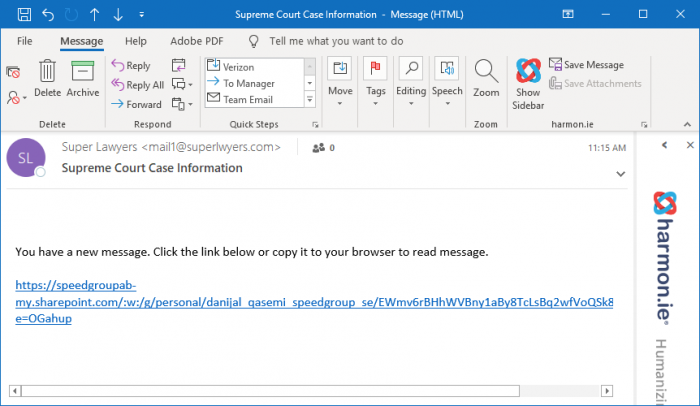
I recently received the email below that looks like it is from mail1@superlawyers.com.   It states that I have received a new message and to click the link below to read the message.  However, the link in the email does not link to superlawyers.com.  It links to speedgroupab-my.sharepoint.com/danijal_qasemi_speedgroup_se.

This is the address of a personal OneDrive Account for Danijal Qasemi.  The link opens a word document on Danijal Qasemi’s personal one-drive asking for your email system and it will then ask you to enter your Office 365 credentials.  In other words, it will be phishing for your Office 365 Credentials if you follow the link.

This is a red flag.   Do not trust an email that links you to a url that doesn’t make sense.  Microsoft emails should link to Microsoft URLs.  Symbioshare emails should link to Symbioshare. OnPoint Legal, or Microsoft URLs.

How to search for a document

To find documents in OnPoint Legal, you will use the SharePoint Search System. There are two main decisions points. What body of files do you wish to search from, and what phrase to search with.

To find documents in OnPoint Legal, you will use the SharePoint Search System.   There are two main decisions points: what body of files do you wish to search from, and what phrase to search with.

The body of  files is either the document library containing the document, or everything.   To search everything, do to your OnPoint Home Page and enter your phrase in the search box and hit enter.    To narrow your search to a specific matter or folder, go to the site where the containing document library is located.  You can even drill down to a specific folder to search that folder and its subfolders.

The phrase you use can be common language.  You can also use the Keyword Query Language.

Keep in mind that SharePoint indexes words within Office and PDF documents.   So if you are looking for a document and you know that document has a specific phrase that most other documents don’t, then using that phrase will narrow your results.

Below is a sway that demonstrates how to find a document in an archive.

Announcing the Symbioshare Modern Word Add-In

Announcing the new Symbioshare Modern Word Add-In with support for Document and Letterhead Templates, a new Clause Library, and MedChrono Report.

Microsoft has recently improved the Word Add-In API to allow for insertion of Headers, Footers and Content.  Consequently, we are excited to announce the Follow-On to our popular com Word Add-In.

This adding brings the following new features:

  1. The ability to insert Headers and Footers from the Letterhead Library
  2. The ability to insert content from the Document Template Library
  3. The ability to get a link to your Matter Document Libraries to simplify saving file
  4. A new clause library to introduce reusable snippets that can be inserted into documents
  5. A MedChrono report to easily create a Word Table populated with MedChrono data

Pre-Requisites:  Office 2016

Help content is provided in the Add-In.  To ensure that the add-in is loaded, review this sway:

HarmonIE should be updated at least monthly

OnPoint Legal and Harmon.ie are an aggregator of Microsoft Services such as Exchange Online, Office 365 Groups, and SharePoint.  These services are great in isolation, but need some help to work in a way that is beneficial to law firms.  

OnPoint Legal and Harmon.ie are an aggregator of Microsoft Services such as Exchange Online, Office 365 Groups, and SharePoint.  These services are great in isolation, but need some help to work in a way that is beneficial to law firms.

Unfortunately, with Microsoft’s regular updates, aggregators like Symbioshare and HarmonIE require frequent upgrades to ensure compatibility with Microsoft’s products.

Symbioshare pushes changes to clients so no action is required; however, HarmonIE does not.

Consequently, to ensure that your version of HarmonIE is compatible, Symbioshare recommends updating HarmonIE monthly.

Remember, if you have fewer than 15 users, you cannot purchase HarmonIE and must use the Personal Download link.  If you have more than 15 users, then you must purchase HarmonIE and use the Enterprise link.

Document Templates In a nutshell

Document templates are an important feature of any Legal Document Management system.  OnPoint Legal provides document template capabilities through a Document Library and its word add-in.

Document templates are an important feature of any Legal Document Management system.  OnPoint Legal provides document template capabilities through a Document Library and its Microsoft Word add-in.

Software pre-requisites:

  1. Microsoft Word 2010 or Greater
  2. OnPoint Word Add-In from your OnPoint Home Page

Typical Document Creation Flow:

  1. Create a New Word Document with your letterhead.
  2. Create your content template and save to your “Document Templates” library.
  3. Merge your letterhead and content into a single new document.
  4. Fill placeholders with data stored in SharePoint.
  5. Modify remaining portion of document.
  6. Save to SharePoint.


Access Denied Error When Adding New List Item

Some users are reporting that when they try to add a new list item, they are directed to a modern list form, then redirected to a page saying that they don’t have permissions to view a page.

Some users are reporting that when they try to add a new list item, they are sent to a modern list form, then redirected to a page saying that they don’t have permissions to view a page.

Symptom: After a modern list form is opened, the user is not given an opportunity to fill out the form because the user is redirected to a page requiring that the user request access.

Cause: The user’s stored credentials have expired for a downstream service whose credentials are cached in the browser.

Discussion: This error is not related to OnPoint Legal.  Office 365 is a collection of services.  Each service requires credentials.  These credentials can be passively obtained from cached credentials, or directly obtained by logging in.   Pages in one service that access data in another service rely solely upon passive credentials.  If passive credentials are present but expired, then Sharepoint assumes the user does not have access and redirects to a screen allowing the user to request access.

For example, modern Sharepoint list forms can either be Out of the Box list forms, or they can be modified by Microsoft Flow.  Microsoft Flow is a downstream service.  When a modern list form is opened, Microsoft Flow is queried to determine if a custom form is available.  If the user’s credentials for Microsoft Flow are present but have expired, an error occurs and the user is redirected to a page to request access.

Fix: The easiest fix is to clear your browser’s cache on the list form.  That is accomplished by quickly typing ctrl+F5 before the redirection occurs.  Ctrl+F5 clears the cache and reloads the page from the browser rather then using stored credentials.  This will also force obtaining new credentials for the downstream service which are good for 30 days.

A more direct method is to log out of Sharepoint and then log back in.


Announcing Improved Technical Support

Our customers demand world class support. To maintain this level of quality, we have expanded our technical support system by partnering with Univirtual Solutions and its 24 x 7 support team.

Our customers demand world class support.  Previously, we have emphasized speed over knowledge; however, in tracking our support requests, the vast majority of questions actually are related to Microsoft products.  Although Symbioshare is not an expert on these products, we have provided support where possible.   Many times this only complicated or extend the time to resolution.

As a result, we have expanded our technical support system by partnering with Univirtual Solutions.  Univirtual Solutions is a Georgia based IT firm that operates a 24 x 7 call center staffed with employees knowledgeable on all Microsoft products.  Consequently, our customers will now get tier 1 support from experts on Microsoft products with the ability to quickly resolve or escalate any issue to the subject matter expert for that issue.  Of course, if a technical support issue related to OnPoint Legal, Symbioshare’s team will serve as tier 2 support to help Univirtual resolve any issues.  This arrangement is necessary to give you the same level of attention that you have grown accustomed to.

As before, Technical Support contact information will be on your OnPoint Legal home page in the bottom right corner.  Univirtual can be reach by phone, email, or live chat.

We welcome Univirtual Solutions to the Symbioshare team and look forward to improving what is clearly one of the best features of OnPoint Legal…technical support.

Beware of the Microsoft Word AutoSave Feature

The AutoSave feature was conceived to make it less likely that a user will loose data by saving each change immediately to SharePoint. But there’s a catch.
If you use existing documents as templates, you may accidentally modify the wrong document.

The AutoSave feature was conceived to make it less likely that a user will loose data by saving each change immediately to SharePoint.

PROBLEM: If you sometimes use existing files as templates by modifying and then saving the modified file to a new location, you will find that you have actually changed the original file.  This is usually not a desirable outcome.

Currently, there is no way to disable the AutoSave Feature.  It can be turned off for a single session, but it will be active on any future document opened.

RECOMMENDATIONS:

  1. Change your practice to copy files before modification.
  2. For all files that are of historical value, always mark them as final under File => Info => Protect Document.  This will prevent accidentally changing the document.
  3. Digitally sign files rather than manually signing.  This marks them as final.

HOW TO FIX A MODIFIED DOCUMENT:

Even if you accidentally modified a document, all previous version of the document are still available.  Just roll back to a previous version.  This can be done with the version option in SharePoint, or by clicking the “Version History” icon on the top right of Word 2016.